**The Hidden Truth About Thunderbolt Ports on Apple Silicon Macs**
If you own an Apple silicon Mac, take a closer look at the Thunderbolt ports on your device. At first glance, they all appear identical, bearing only the Thunderbolt lightning symbol. But don't be fooled – one of them is different from the rest, and it's not just a matter of aesthetics.
Apple has designed these new Macs to provide two crucial features that rely on how their Thunderbolt ports function: DFU (Device Firmware Update) mode and LocalPolicy support for external boot disks. Neither of these features is available in Intel Macs with T2 chips, which raises questions about the significance of these differences.
DFU mode allows you to start up your Mac using only the Boot ROM, without relying on macOS. This is useful when updating or reinstalling macOS, as it bypasses any potential issues with the operating system itself. However, this mode requires a specific Thunderbolt port that also supports DFU functionality.
Apple hasn't explicitly explained how the DFU port differs from its peers, but speculation suggests that the Boot ROM runs a simpler protocol over USB-C to ensure security and compactness of code. In contrast, LocalPolicy relies on more complex protocols that may be intentionally blocked for DFU mode.
The end result is that while the DFU port works seamlessly in all other respects – with full USB4 and Thunderbolt 4/5 support – it cannot be used to make an external disk bootable or update macOS on a pre-existing bootable disk. You can connect your Mac in DFU mode using any Thunderbolt cable, but you must ensure that the connection is made to the correct port.
Identifying the DFU port can be tricky, as it appears identical to other USB-C ports and lacks any distinguishing markings. System Information and other macOS utilities fail to provide any information about the DFU port. Even Apple's own Mac User Guide makes no mention of this critical detail.
To make matters more confusing, Apple has published a support note attempting to clarify which Thunderbolt port is the DFU port on various devices. However, this document appears to have been internally inconsistent and has undergone several revisions since its initial release in 2024. According to Apple, the DFU port on the MacBook Pro 16-inch is located on the left-hand side of the device, but some users have reported finding it on the right side.
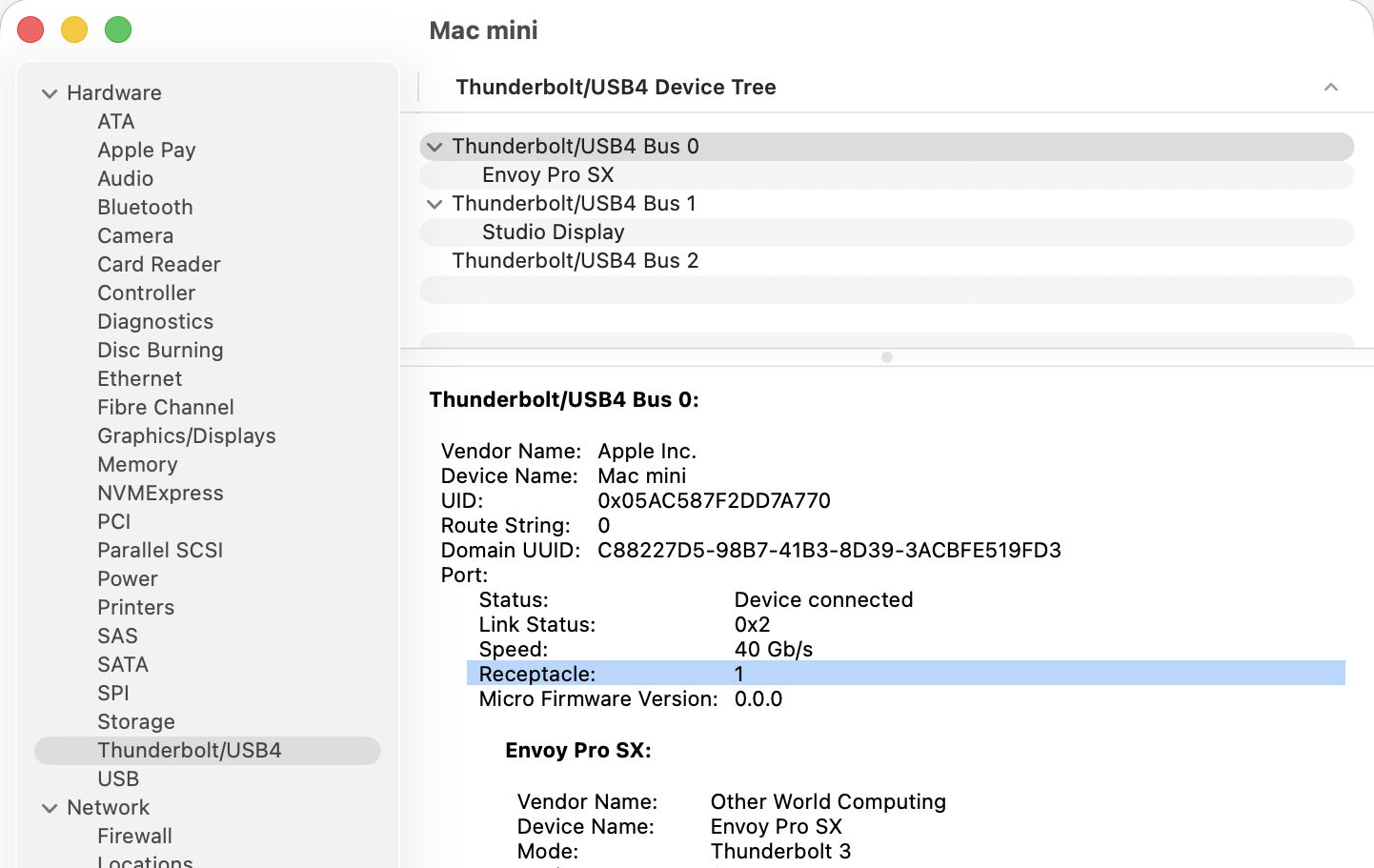
Fortunately, there may be a more reliable method for identifying the DFU port using System Information. By selecting the Thunderbolt/USB4 item in the Hardware section and navigating to Bus 0, you can find details about each bus, including the Receptacle number. Receptacle 1 is often associated with the DFU port, but this requires correlating the information with the physical port on your device.
When connecting an Apple silicon Mac in DFU mode using a USB-C cable, ensure that the connection is made to the correct port – if not, you may encounter issues. Similarly, when connecting an external boot disk, make sure it's connected to a port other than the DFU port for optimal performance.
It's worth noting that DFU ports are not unique to Apple silicon Macs and also appear on Intel models with T2 chips. However, their impact is more limited in these devices.
**What You Need to Know**
* One of your Thunderbolt ports may be the DFU port, but it won't indicate this visually or through System Information. * The DFU port cannot be used for updating macOS on a bootable external disk or making an external disk bootable. * When connecting in DFU mode, ensure the cable is connected to the correct port. * When connecting an external boot disk, avoid using the DFU port for optimal performance.